Issue #84: SwiftUI's hidden orphan switch, toolbars get priorities, and Media Intelligence in iOS 27
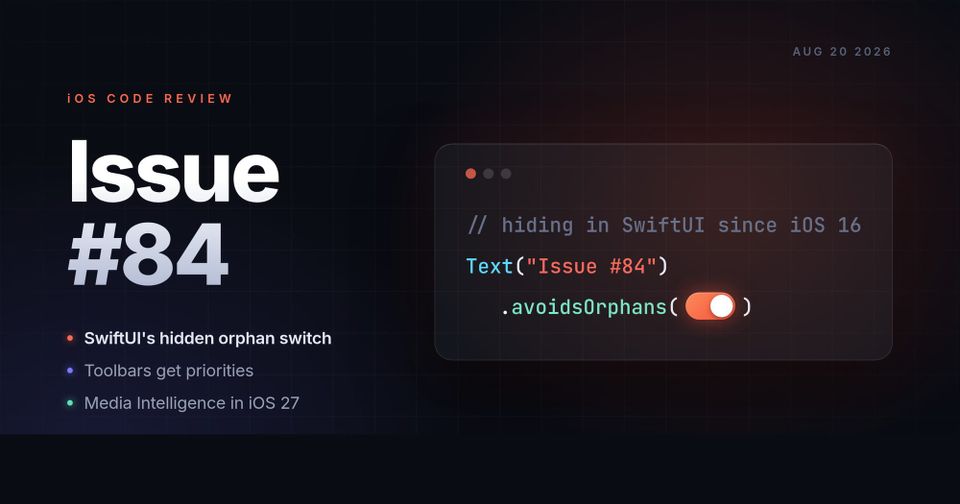
Hey folks 👋 Welcome to Issue #84 of our IOS Code Review.
iOS 27 beta 6 landed on Monday, Xcode 27 beta 5 the week before, and September is close enough that the release notes are starting to feel like homework. This issue leans practical: a switch that has been hiding inside SwiftUI's Text since iOS 16, the new toolbar APIs that decide which of your buttons survive a tight screen, and a quiet iOS 27 framework that spots people across photo libraries and highlight moments in video. Plus the new App Store artwork slots your designers will want a head start on 🎨Let's get right into it!
SwiftUI Text: Orphan Control (iOS 16+)
Ever noticed Text wrapping a whole word group down to the last line, leaving an odd gap above? That is orphan avoidance, and SwiftUI has been doing it by default since iOS 16. A hidden modifier controls it:
import SwiftUI_SPI

Text("Controlling orphans in SwiftUI Text")
    .frame(width: 150)
    .avoidsOrphans(false)
The modifier is private, so Fatbobman bridges into SwiftUI's ABI with a small custom module interface file. Copy his setup, it takes five minutes. Review guideline 2.5.1 covers private API though, so weigh the App Store risk before you ship it.
Controlling Orphans in SwiftUI Text
"SwiftUI's Text has a default behavior: when the final line of a paragraph is left holding a single stranded word or character, it proactively pushes the complete word group from the preceding line down to join it, so that nothing is left standing alone."
 Fatbobman
SwiftUI Toolbars: Set Your Priorities (iOS 27+)
iOS 27 gives you a say in how toolbars adapt when space gets tight. Rank your items with visibilityPriority, and SwiftUI will move the low priority ones into the overflow menu first:
ToolbarItem {
    FavoritePaletteButton(palette: palette)
}
.visibilityPriority(.high)
You can also decide how the navigation bar minimizes while people scroll:
.toolbarMinimizationBehavior(
    .onScrollDown,
    for: .navigationBar
)
Adaptive SwiftUI toolbars in iOS 27
Control which toolbar actions stay visible when space is limited, place secondary commands in the overflow menu, and configure navigation bar minimization.
 Natalia Panferova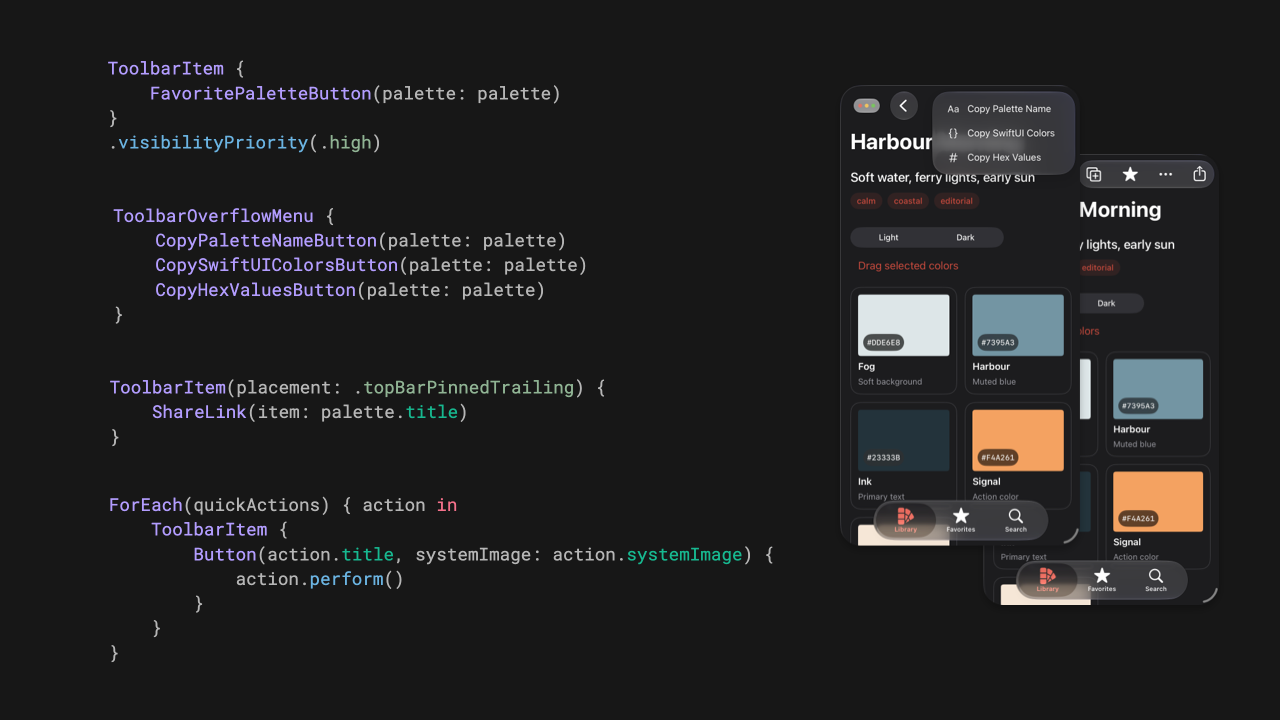
Media Intelligence (iOS 27+)
Monday's iOS 27 beta 6 is a good excuse to look at one of the quieter frameworks in this year's SDK. Media Intelligence analyzes photos and videos on device: FaceGroupAnalyzer clusters faces that belong to the same person across a photo library, and VideoAnalyzer finds key frames and highlight moments:
let asset = MediaIntelligenceVideoAsset(url: videoURL)
let keyFrameRequest = KeyFrameAnalysisRequest()
let highlightRequest = HighlightAnalysisRequest()

let (keyFrames, highlights) = try await VideoAnalyzer.shared.analyze(
    asset,
    for: keyFrameRequest,
    highlightRequest
)
Grab a physical device for this one, the Simulator sits it out.
iOS 27: Media Intelligence Framework
"Vision gives us observations. Media Intelligence starts connecting them."
 Anton Gubarenko
Sendable & @Sendable Closures
Still chasing Sendable warnings after your Swift 6 migration? Here is the marker protocol behind them. A type is Sendable when it is safe to cross concurrency domains, and closures make the same promise with the @Sendable attribute:
actor ArticlesList {
    func filteredArticles(
        _ isIncluded: @Sendable (Article) -> Bool
    ) async -> [Article] {
        // ...
    }
}
Value types get conformance for free when their members are Sendable. Classes qualify once they are final and their stored state is immutable. Antoine refreshed his guide this month with all the compiler checks explained.
Sendable and @Sendable closures explained with code examples
"Sendable is a protocol in Swift that indicates a type is safe to share across concurrency domains."
 Antoine van der Lee
Find Your Slowest Code
Drowning in call trees inside the Time Profiler? Flip the detail view into Top Functions mode. Instruments sorts everything by self weight, so the code eating your CPU floats straight to the top. Double-click one of your own functions and you land on the exact lines.
Using Top Functions Mode in Instruments to Quickly Find the Slowest Code
Learn how to surface the functions where your app spends the most time, and how to read the flame graph once you get there.

New App Store Creative Assets
Starting this fall, the App Store will show new marketing artwork on product pages, in search results, and in In-App Events. Think brand identity, seasonal artwork, and promos for big content drops. Apple published best practices along with design templates for Figma, Photoshop, and Pixelmator, so your designers can get ahead of it now.

✌️
Alright, that's it for today! Let's spread the good code vibes ✨🧘🌈☀️
Beta season rolls on with Xcode 27 beta 5, and the Swift team shipped the July digest: task stealers for the concurrency runtime, self-hosted package registries in SwiftPM, and a freshly accepted withDeadline proposal for putting time limits on async work. See you in the next one!
Member discussion